Building your model just got a lot easier in IcePanel. We now support model as code in a simple JSON format. Use our API/SDK or import directly in the app using a JSON or YAML file. Go from code to structured model code to interactive diagrams with the help of LLMs.
What’s new? ✨
Model as code 🧑💻
Objects, connections, and tags can now be represented in code and imported directly into IcePanel. Instead of working with a complicated DSL that everyone needs to learn, we created a simple JSON format for you to work with.
To start, check out our API/SDK docs to learn about the import structure here:
https://developer.icepanel.io/api-reference/landscapes/import/create
Our API/SDK supports Typescript, C#, Go, Java, Python, and cURL. Here’s an example request in Typescript to import data:
import { IcePanelClient } from "@icepanel/sdk";

async function main() {
    const client = new IcePanelClient({
        apiKey: "YOUR_API_KEY_HERE",
    });
    await client.landscapes.import.create("landscapeId", "versionId", {
        body: {
            modelConnections: [
                {
                    direction: "outgoing",
                    id: "connection-1",
                    name: "Connection",
                    originId: "object-2",
                    targetId: "object-3",
                },
            ],
            modelObjects: [
                {
                    id: "object-1",
                    name: "Domain",
                    type: "domain",
                },
                {
                    id: "object-2",
                    name: "System",
                    type: "system",
                    groupIds: [
                        "object-3",
                    ],
                    parentId: "object-1",
                },
                {
                    id: "object-3",
                    name: "Group",
                    type: "group",
                    parentId: "object-1",
                    tagIds: [
                        "tag-1",
                    ],
                },
            ],
            tagGroups: [
                {
                    icon: "bug",
                    id: "tag-group-1",
                    name: "Tag Group",
                },
            ],
            tags: [
                {
                    color: "beaver",
                    groupId: "tag-group-1",
                    id: "tag-1",
                    name: "Tag",
                },
            ],
        },
    });
}
main();
If you’re interested in updating objects, connections, and tags, dive into these endpoints:
- Objects: https://developer.icepanel.io/api-reference/model/objects/upsert
- Connections: https://developer.icepanel.io/api-reference/model/connections/upsert
- Tags: https://developer.icepanel.io/api-reference/tags/upsert
Import a JSON or YAML file to IcePanel 📁
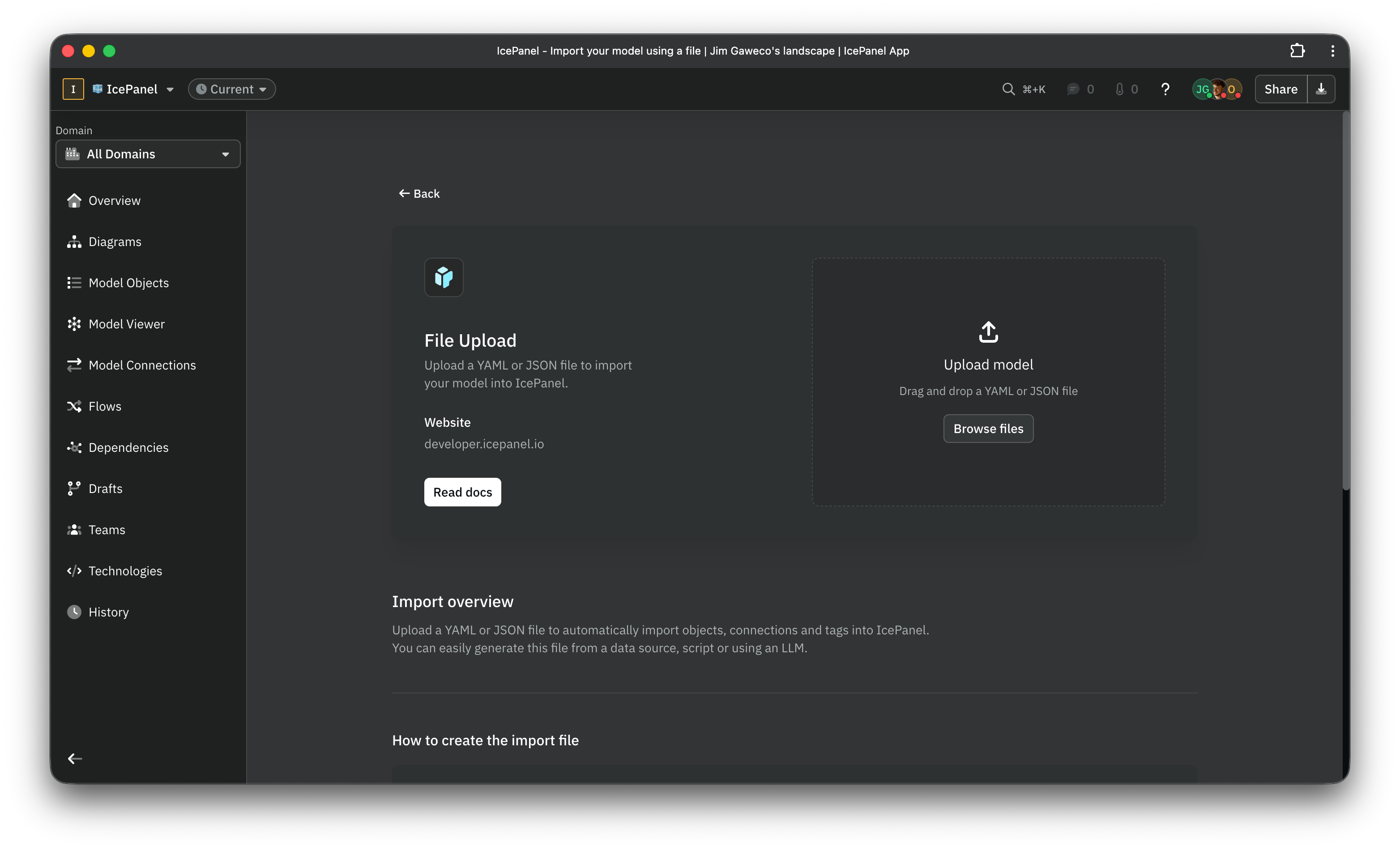
Model objects can imported using our API/SDK, or uploaded directly in the app with a JSON or YAML file. You can use an LLM to generate these files by giving it context of our JSONSchema.
Here’s how to get started:
-
If you’re using a YAML file for the import, insert the following prefix to validate the file structure in your IDE:
# yaml-language-server: $schema=https://api.icepanel.io/v1/schemas/LandscapeImportData -
If you’re using an LLM to generate the import, try the following example prompt to generate the file automatically. You may need to adjust it for best results:
Generate an IcePanel landscape import data model based on the C4 model from the infrastructure and software architecture of the platform. Parse infrastructure files to understand the platform and use it to map the infrastructure into C4 model abstraction. Do not create objects or connections that don't exist or are strongly implied by the infrastructure. Fetch LandscapeImportData JSONSchema from api.icepanel.io/v1/schemas/LandscapeImportData along with nested schemas and strictly follow the schema to create a YAML file for import into IcePanel. Fetch docs.icepanel.io/core-features/modelling.md for context on how to create IcePanel C4 model structures. Infrastructure can be categorized into technologies by fetching the JSONSchema from api.icepanel.io/v1/schemas/CatalogTechnologyType. Perform an exhaustive search for technologies using http requests to api.icepanel.io/v1/catalog/technologies?filter[name]=NodeJS and add the id to the technologyIds array. If a technology cannot be found try reducing the search term to be more specific to find a match. If a primary technology exists then assign the visual icon to icon.technologyId. Write the resulting import data to a YAML file to the file named icepanel-landscape-import.yaml in the current directory. Prefix the YAML file with # yaml-language-server: $schema=https://api.icepanel.io/v1/schemas/LandscapeImportData. -
Upload the JSON or YAML file using the upload filed. If you don’t see it, create a new landscape, and click on Import model > File upload.
Share your thoughts 💭
Drop us an email if you have any feedback to share — mail@icepanel.io 📩
Stay chill,
The IcePanel team 🧊